

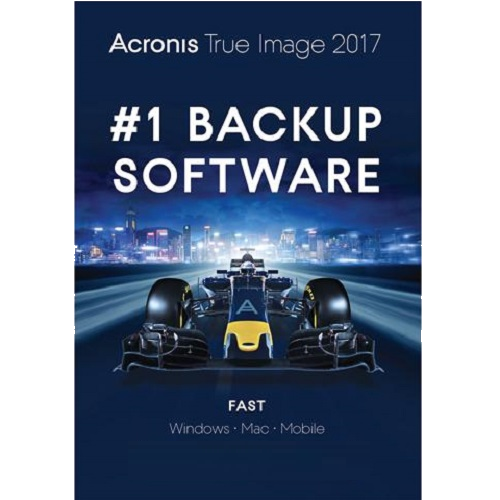
 Acronis True Image 2017
Acronis True Image 2017 is an integrated software suite that ensures the security of all of the information on your PC. It can back up your documents, photos, email, and selected partitions, and even the entire disk drive, including operating system, applications, settings, and all of your data.
Backups allow you to recover your computer system should a disaster occur, such as losing data, accidentally deleting critical files or folders, or suffering a complete hard disk crash.
Online Backup allows you to store your files and disks on Acronis Cloud. Your data will be protected even if your computer is lost, stolen, or destroyed, and your data can be entirely recovered onto a new device, if needed.
Features
-
Disk backup to a local storage and to Acronis Cloud
As opposed to file backups, disk and partition backups contain all the data stored on the disk or partition. This backup type is usually used to create an exact copy of a system partition of the whole system disk. Such backup allows you to recover your computer when Windows works incorrectly or cannot start.
-
File backup to a local storage and to Acronis Cloud
To protect files such as documents, photos, music files, video files, there is no need to back up the entire partition containing the files. You can back up specific files and folders.
-
Rescue bootable media
You can run Acronis True Image 2017 from a bootable media on a bare-metal system or a crashed computer that cannot boot. You can even back up disks on a non-Windows computer, copying all its data into the backup by imaging the disk in the sector-by-sector mode. To do so, you need bootable media that has a copy of the standalone Acronis True Image 2017 version installed on it.
-
Hard disk cloning
We recommend that you clone disks under bootable media. Even when you start cloning in Windows, your computer will restart into the standalone version of Acronis True Image 2017 to complete the cloning procedure. In addition, under bootable media you can check if both disks are recognized correctly. This is important to do before you start cloning.
-
Data archiving
Data archiving is a tool that allows you to move your big or rarely used files to Acronis Cloud, NAS, an external hard drive, or a USB flash drive. Every time you run this tool, it analyzes the data in the selected folder and suggests uploading the found files to Acronis Cloud or moving them to local storage. You can select the files and folders that you want to archive. After moving to an archive, the local copies of these files will be deleted. The links to the files are stored in a special location called Acronis Drive. You can access the location as an ordinary folder in File Explorer. Double-clicking a file link will open the file as if it was stored in the local folder. If the file is archived to Acronis Cloud, it will be downloaded back to your computer, first. You can also access and manage it right in Acronis Cloud.
-
Family data protection
Family data protection is a unified cross-platform solution that allows you to track and control the protection status of all computers, smartphones, and tablets sharing the same Acronis account. Since users of these devices must be signed in to the same account, usually they are members of the same family. In general, each of them can use this feature, but there is often a family member who is more experienced in technology than the others. So, it’s reasonable to make that person responsible for protection of the family data.
-
File synchronization
You can have the same data – documents, photos, videos, etc. – on all of your computers. Your data is within easy reach anywhere and anytime. No more emailing files to yourself or carrying an USB drive all the time.
You can create as many syncs as you need.The Acronis Cloud keeps your synced files and versions of those files. This lets you roll back to a previous file version whenever you need it.
Note: An Acronis Cloud Storage subscription is required to use this feature. Refer to Subscription information for details.
You can also access the Cloud using a web browser, without having to install our application.
-
Security and privacy tools
Acronis Tools and utilities include protection tools, mounting tools, clone disk utility, security and privacy utilities, and disk management utilities.
Protection tools
- Acronis Universal Restore mediaIf you recover your image on a computer with a dissimilar hardware configuration, the program may not be able to find some of device drivers in the default folders, especially when the target hardware has a specific mass storage controller.
This tool can be found in the Tools tab in Acronis True Image 2017 or downloaded from your Acronis account.
- Acronis Startup Recovery ManagerAllows you to start Acronis True Image 2017 without loading the operating system by pressing F11 at boot time before the operating system starts.
- Rescue Media BuilderAllows you to create a bootable rescue media with Acronis products (or their specified components) installed on your computer.
- Acronis Secure ZoneAllows you to store your backups in a special safe partition on your disk.
- Try&DecideTry any unsafe operation in the Try mode and then decide whether to apply or discard it.
Disk cloning
- Clone diskUse Clone disk wizard if you need to clone your hard disk drive by copying the partitions to another hard disk.
Security and privacy
- Acronis DriveCleanserAcronis DriveCleanser utility provides for secure destruction of data on your hard disk.
- System Clean-upWith the System Clean-up utility, you can clean up components (folders, files, registry sections, etc.), related to general system tasks. These Windows components retain evidence of user PC activity, so they too should be thoroughly wiped to maintain confidentiality.
Disk management
- Add new diskAdd new disk wizard helps you to add a new hard disk drive to your computer. You will be able to prepare the new hard disk drive by creating and formatting new partitions on this hard disk.
Image mounting
- Mount imageWith this tool you can explore a previously created image. You will be able to assign temporary drive letters to the partition images and easily access these images as ordinary, logical drives.
-
Unmount image
With this tool you can unmount the temporary logical drives you have created to explore an image.